SFTP File Browser
Opening the File Browser
Click SFTP on any server in the Site Manager. A new tab opens showing the remote filesystem.
Navigation
- Click a folder to enter it
- Double-click a file to open it in the editor
- Breadcrumbs at the top show the current path -- click any segment to jump there
- Remote path bar -- type a path directly and press Enter
- Up arrow button -- go to parent directory
File Operations
| Action | How |
|---|---|
| Upload | Click Upload button or drag & drop files into the file list |
| Download | Right-click > Download, or use the DL button |
| New Folder | Click New Folder, enter name |
| Rename | Right-click > Rename |
| Delete | Right-click > Delete (with confirmation) |
File Editor
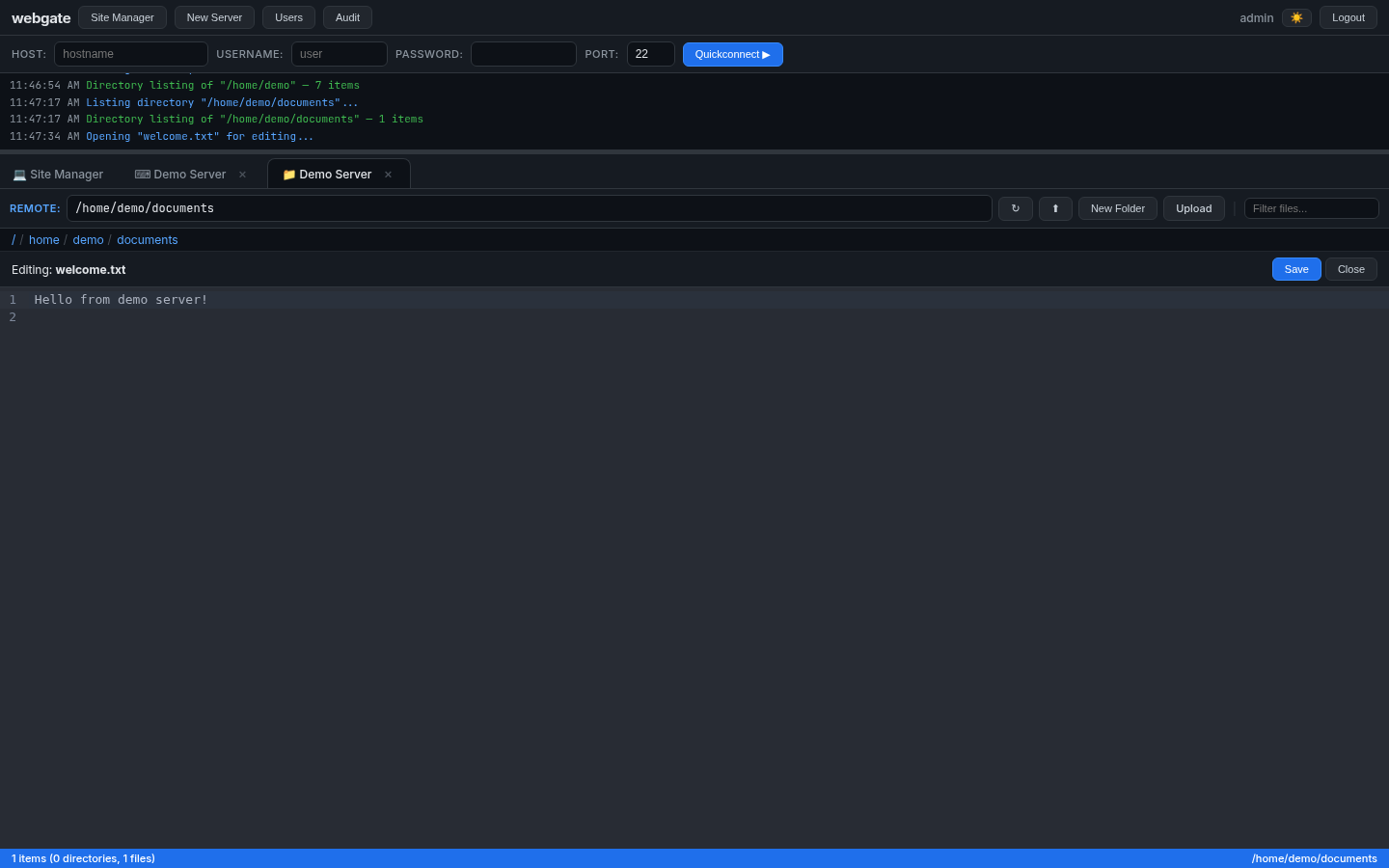
Click any text file to open it in the CodeMirror 6 editor:
- Syntax highlighting (oneDark theme)
- Line numbers
- Search & replace (Ctrl+F)
- Save button to write changes back to the server
File Preview
These file types open in a preview instead of the editor:
| Type | Extensions |
|---|---|
.pdf |
|
| Images | .png, .jpg, .jpeg, .gif, .bmp, .svg, .webp |
Search / Filter
The filter input in the path bar lets you quickly find files by name in the current directory. Type to filter -- results update instantly.
Connection Pool
SFTP connections are reused across requests to the same server (5 minute TTL). This means:
- First request: ~150ms (SSH handshake)
- Subsequent requests: ~15ms (reused connection)